Beyond Static: Beautify Your Desktop with iTop Easy Desktop 20,000+ Wallpapers

Your desktop is the first thing you see when you turn on your computer, yet it’s often overlooked. A messy or dull desktop can reduce focus and efficiency over time. The right tools can turn your screen into more than a background, using striking wallpapers to create an organized, inspiring, and motivating workspace.
What is iTop Easy Desktop?
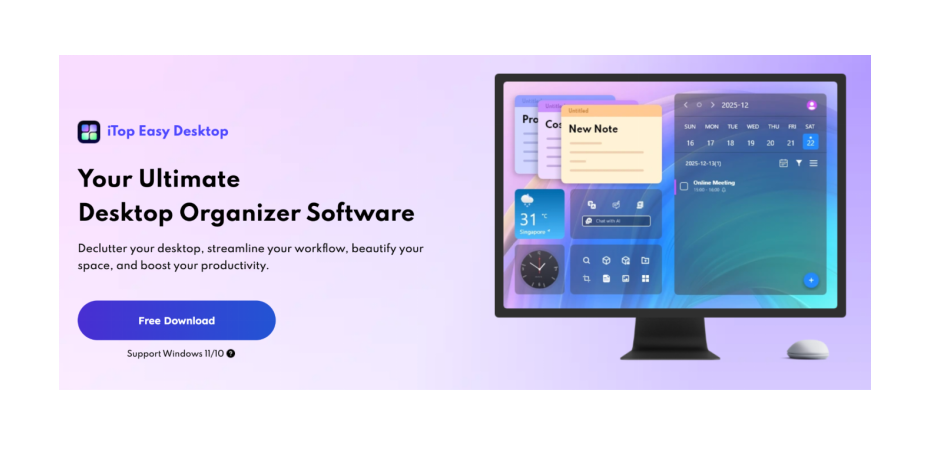
iTop Easy Desktop brings together intelligent organization features and a simple design to enhance both desktop management and visual appeal. Offering effortless desktop management alongside a library of over 20,000 HD and 4K wallpapers, it keeps your desktop organized, visually appealing, and personal.
Rather than sorting icons by hand, iTop Easy Desktop automatically arranges them into customizable boxes, keeping your desktop tidy and efficient. This helps you find files quickly, keeps your desktop clutter-free, and establishes an organized digital workspace. At the same time, its massive wallpaper library ensures your desktop always looks fresh, modern, and uniquely personalized, no matter how often you change your setup.
Why Desktop Beautification Matters
A thoughtfully organized desktop does more than look good—it influences your focus, efficiency, and mood all day. An organized and attractive desktop can:
- Improve concentration by reducing visual clutter
- Save time when locating files, apps, and shortcuts
- Create a calming, inspiring, or motivating environment
- Reduce stress during long working hours
Key Features of iTop Easy Desktop
1. Access to 20,000+ HD and 4K Wallpapers for PC
Browse a vast, constantly refreshed collection of sharp 4K wallpapers to customize your desktop. From serene landscapes to futuristic sci-fi and abstract art, iTop Easy Desktop provides crisp wallpapers and endless ways to personalize your desktop.
2. Easy to apply Dynamic Wallpaper Rotation
Easily switch between static and dynamic (live) wallpapers with a single click. Automatic wallpaper rotation refreshes your desktop daily or on custom schedules, adding variety and preventing visual boredom while keeping your screen fresh, seasonal, and visually engaging, with no complicated setup.
3. Dynamic wallpapers of a variety of themes
Turn your screen into a dynamic canvas with vibrant animated wallpapers, featuring anime, gaming adventures, and tranquil nature scenes. These lightweight visuals use minimal system resources, adding smooth motion and visual interest while keeping your PC fast, responsive, and distraction-free.
4. Smart PC Organization
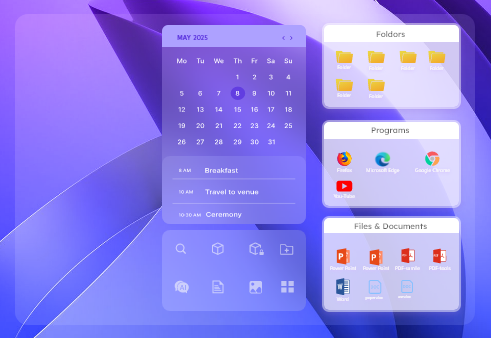
Design personalized boxes to sort files and apps by category, color, or transparency. Automatically grouping icons keeps your desktop organized, reduces clutter, and makes daily access quick—perfect for frequent downloads or multitasking.
5. Integrated widgets for an efficiency boost
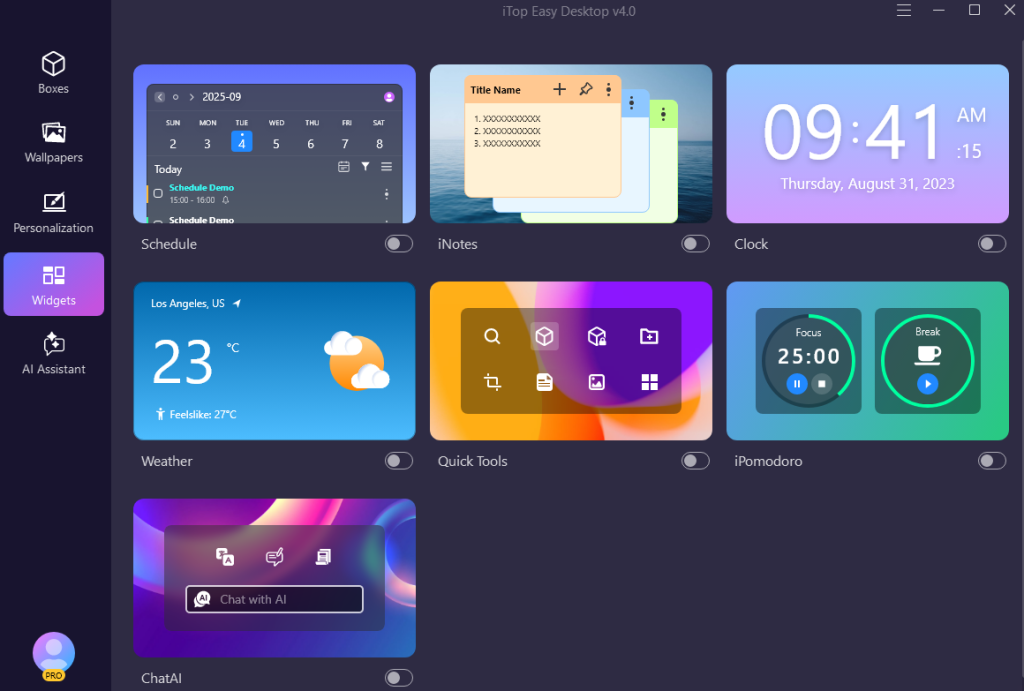
Not just a desktop organizer software, you can work smarter with handy widgets, including Schedule, Weather, Clock, iNotes, Pomodoro timer, and Folder Portal. These useful tools put important tasks and data at your fingertips, improving efficiency and daily workflow.
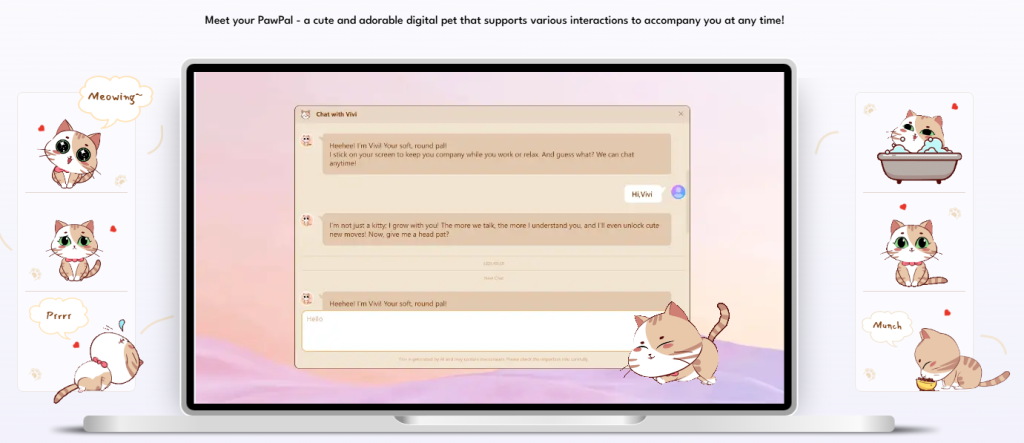
- Cute Desktop Desktop Pet -PawPal
PawPal is the interactive AI desktop companion featured in iTop Easy Desktop (introduced in latest version 4.0). It is designed to be a “living” digital pet that resides on your Windows screen, providing both entertainment and a more humanized interface for the software’s AI tools.
- One-Click Desktop Cleanup
One click automatically arranges desktop icons into clean, orderly sections. This speeds up desktop management, ideal for quickly tidying up after downloads, installations, or everyday clutter.
Step-by-Step Guide: How to Beautify Your Desktop Using iTop Easy Desktop
Step 1: Get the free installer from the official iTop Easy Desktop website and complete the setup by following the on-screen prompts. Installation is smooth, with instant access to core features—no sign-up required.
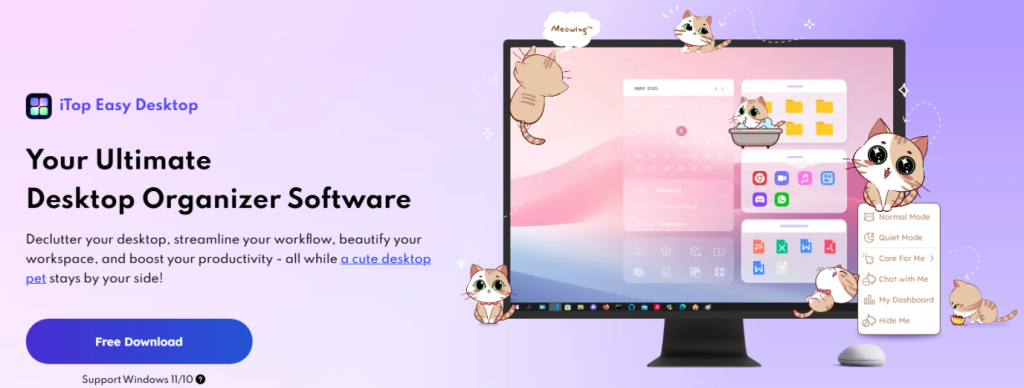
Step 2: Open the “Wallpapers” tab and choose between animated or still backgrounds. Apply filters for 4K, categories, or styles to quickly discover high-quality wallpapers that match your PC and personal taste.
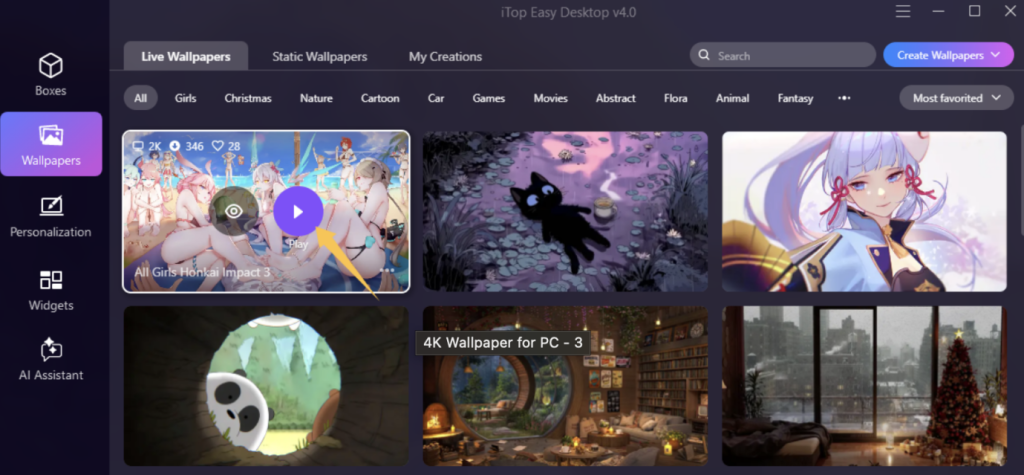
Step 3: For dynamic wallpapers, select your preferred wallpaper, then click “Preview” to preview it on your desktop. When everything is set, select “Play” to activate it.
Step 4: Select and download a static wallpaper as usual, then choose “Apply to Background” for immediate setup.
Useful Tips: How to Change the Desktop Wallpaper in Windows and macOS
Even with automatic wallpaper features in iTop Easy Desktop, understanding how to change wallpapers manually on various systems can be helpful.
How to Change Desktop Wallpaper in Windows
Windows includes built-in personalization settings that let you easily change your desktop background. You can use personal photos, downloaded images, or high-resolution 4K wallpapers for sharper, clearer visuals. After downloading your preferred 4K wallpaper, simply apply it through the desktop settings. Here’s a step-by-step guide to get you started.
Step 1: Click the Start menu, select the gear icon, or quickly launch Settings with Windows key + I. Once the Settings window opens, go to the Personalization section to continue.
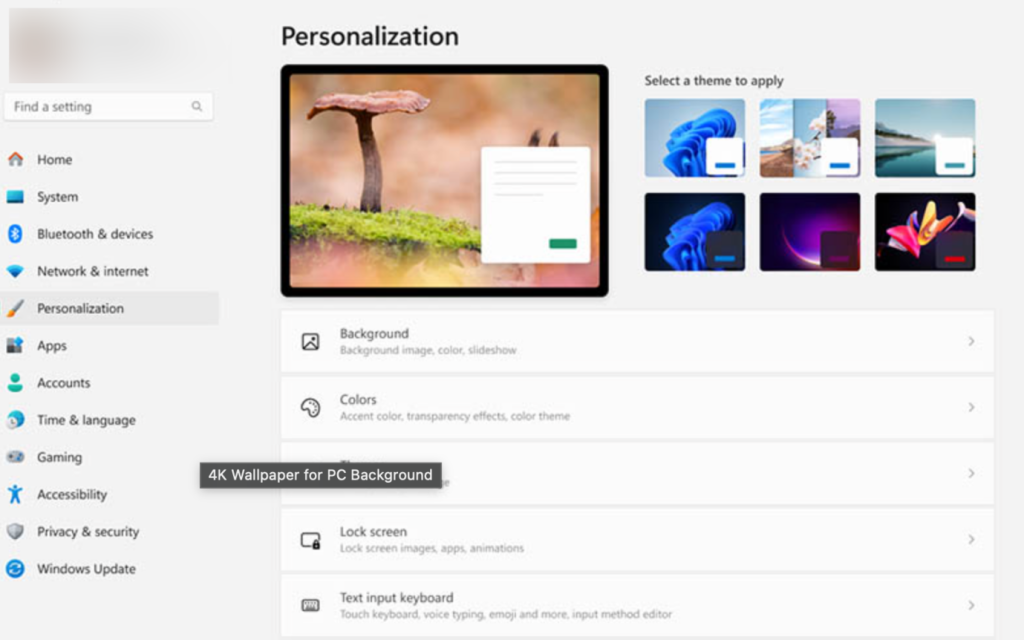
Step 2: From the left-hand menu, click on “Background.” Under the “Personalize your background” option, select “Picture” if you want to use a single image. Click “Browse photos,” pick your downloaded 4K wallpaper, and make it your desktop background.
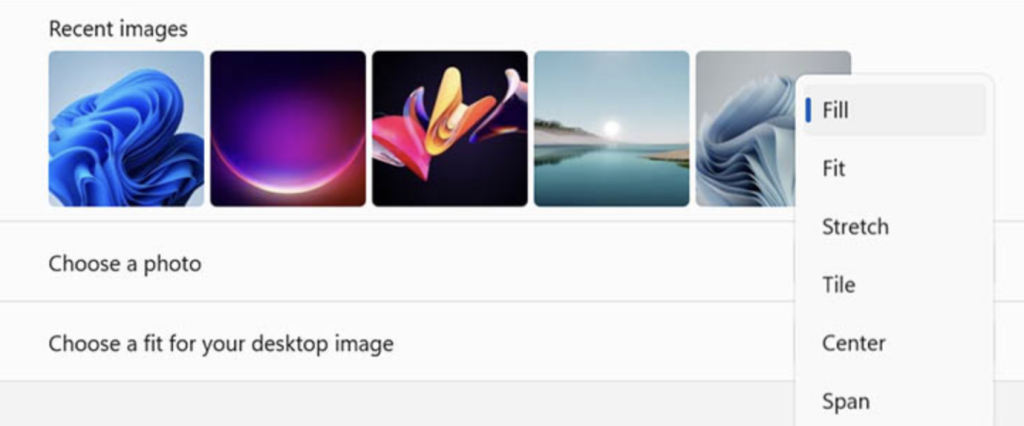
Step 3: Next, adjust the image’s fit on your screen. Choose “Fill” to make the image cover every inch of the screen, “Fit” to preserve its proportions, or “Stretch” to expand it fully. Once you choose the option that looks best, the changes apply automatically—your wallpaper is now set.
How to Change Desktop Wallpaper in macOS
macOS makes it easy to customize your desktop wallpaper with a smooth and visually appealing experience. Whether you prefer Apple’s default designs or your own photos, dynamic wallpapers keep your desktop perfectly in sync with light and dark modes. Once desktop organizer software is set up, the right wallpaper sharpens clarity, boosts motivation, and creates visual harmony. Use the simple steps below to begin your setup.
Step 1: To open your Mac’s settings, select the Apple icon at the top-left of the screen and click “System Settings” from the drop-down menu.
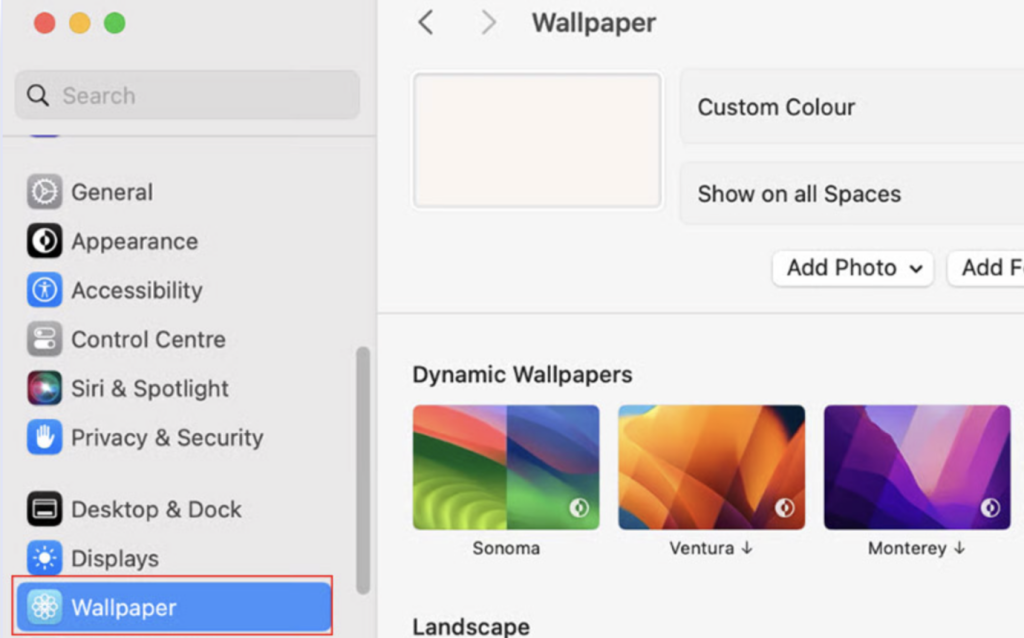
Step 2: After accessing System Settings, look for Wallpaper or Desktop & Screen Saver—the option might be named differently depending on your macOS version. Click it to continue.
Step 3: Whether using macOS’s default wallpapers or your own photos, pick one that reflects your style. Picking a wallpaper that matches your desktop setup helps maintain a tidy, balanced, and inspiring screen.
Conclusion
A polished desktop setup is a simple tweak that promotes focus, efficiency, and a visually satisfying workspace. With stunning wallpapers and smart desktop organization, iTop Easy Desktop makes customizing your workspace effortless and inspiring. With 20,000+ wallpapers, automatic organization, and flexible customization options, it stands out as an efficient and stylish desktop organizer software suitable for users of all experience levels.
FAQs
Q1. Will using iTop Easy Desktop affect system performance?
Thanks to its efficient, lightweight design, iTop Easy Desktop runs quickly and responds instantly. It runs smoothly in the background without significantly impacting system speed or resource usage.
Q2. Is iTop Easy Desktop suitable for both work and personal setups?
For sure. iTop Easy Desktop offers flexible customization, whether you want a clean, professional look or a playful, animated background.